Short answer
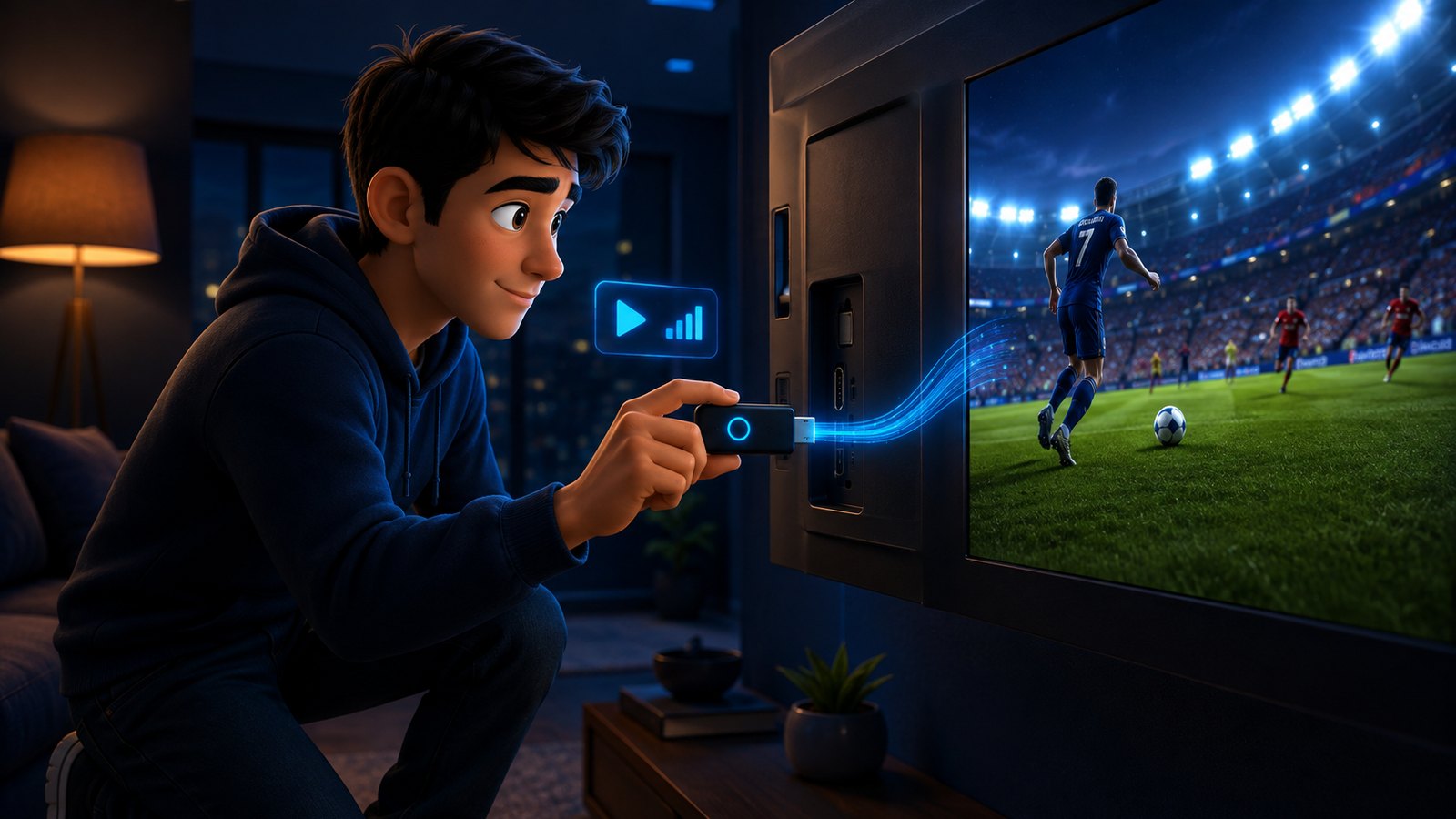
It depends entirely on which operating system your TV runs, not on the brand badge. An Android TV or Google TV set (Sony, Philips, TCL, Hisense, most Xiaomi) installs IPTV Smarters Pro or TiviMate straight from the Play Store and behaves exactly like a streaming stick. A Samsung (Tizen) or LG (webOS) set is a closed shop: you get a small handful of approved players such as Smart IPTV, IPTV Smarters and Set IPTV, several of them a one-off paid licence, and you usually load your playlist through the app’s website rather than on the TV. If your set is older than about 2016, or the app you need is not in its store, the fastest and cheapest fix is not a new television — it is a £35 streaming stick plugged into the HDMI port. ottocean hands you a standard Xtream Codes login and an M3U link, which is exactly what every one of these apps expects.
Almost every television sold in the last decade calls itself smart, and almost none of them mean the same thing by it. That single fact explains most of the confusion around IPTV on Smart TVs: a friend tells you it took two minutes on their Sony, you try the same steps on your Samsung, and there is no such app in the store. Neither of you is wrong. Under the badge, those two televisions are running completely different software with completely different rules about what you are allowed to install. This guide sorts your TV into the right group, tells you honestly what each one can and cannot do, walks through the setup, and explains the one situation where the right answer is to stop fighting the television altogether.
First, Find Out What Your TV Actually Runs
Forget the brand for a moment. There are only three families that matter, and your setup path is decided entirely by which one you are in.
| System | Typical brands | What IPTV looks like here |
|---|---|---|
| Android TV / Google TV | Sony, Philips, TCL, Hisense, Xiaomi, Nokia | Best case. Full Play Store, IPTV Smarters and TiviMate install normally, sideloading possible. |
| Tizen (Samsung) | Samsung, 2015 onward | Closed store. A few approved players, most with a one-off licence fee. Playlist uploaded via the app’s website. |
| webOS (LG) | LG, 2014 onward | Same shape as Samsung. Smart IPTV, Set IPTV and similar; no sideloading, no Play Store. |
| Roku TV / Fire TV built in | TCL, Hisense, Sharp, some Toshiba | Fire TV built in behaves like a Firestick. Roku is the weakest — very limited IPTV support. |
| Anything older than 2015 | Any brand | Treat it as a monitor. Add an external stick and ignore the built-in system. |
To check: on Samsung, Settings → Support → About This TV shows a Tizen version. On LG, Settings → General → About This TV shows webOS. On Android TV sets, the presence of the Google Play Store settles it immediately. That one lookup saves an hour of searching for an app that was never going to be there.
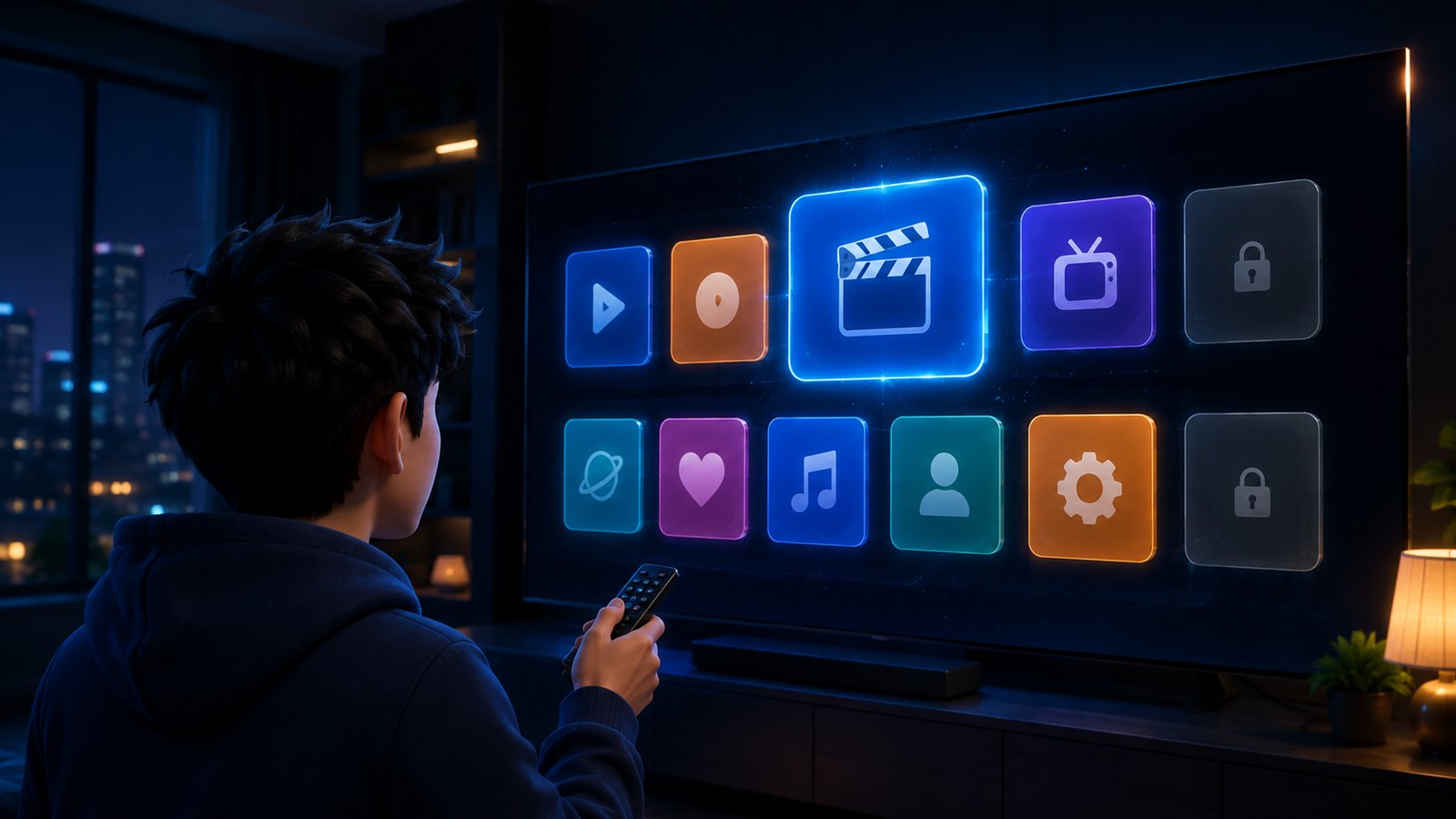
Android TV and Google TV: The Easy Path
If your television runs Android TV or Google TV, you have essentially a streaming stick built into the panel, and everything is straightforward.
- Open the Google Play Store from the home screen.
- Search for IPTV Smarters Pro, or TiviMate if you want the better channel list and recording features.
- Install it, open it, and choose Login with Xtream Codes API.
- Enter the server URL, username and password from your subscription email. If you were only given an M3U link, use Load Your Playlist instead.
- Wait for the first channel and EPG sync to finish before touching anything. On a large playlist that takes a few minutes, once.
Two notes. Some Android TVs ship with a trimmed Play Store that hides certain apps — if the player you want is missing, install the Downloader app and sideload it from the developer’s own site, exactly as you would on a Firestick. And prefer Xtream Codes over M3U whenever your provider offers both, because it pulls in the programme guide automatically instead of asking you to hunt for a separate EPG URL.
Samsung Smart TV (Tizen): What Works and What Does Not
Samsung’s Tizen store is curated, and Samsung has removed IPTV players from it before. That is the single most important thing to understand about this platform: your app can, in principle, disappear in an update, and there is no sideloading route to bring it back. It is not a reason to avoid Samsung, but it is a reason to keep a cheap stick in a drawer.
What is normally available in the Samsung store:
- Smart IPTV (SIPTV) — the long-standing default. Free for seven days, then a small one-off licence tied to your TV’s MAC address. You do not type the playlist on the TV; you open the app, note the MAC address it shows on screen, then upload your M3U link on the SIPTV website against that address.
- IPTV Smarters Pro — available on many Tizen versions and the friendlier option, since it accepts an Xtream Codes login typed directly on the TV.
- Set IPTV / Flix IPTV / IBO Player — the same MAC-address-plus-website model as SIPTV, useful as a fallback when the others misbehave.
The MAC address flow catches people out every time, so here it is in plain steps for Smart IPTV:
- Install the app from the Samsung Apps store and open it.
- Write down the MAC address shown on the welcome screen. It looks like
00:1A:2B:3C:4D:5E. - On a phone or laptop, go to the app developer’s upload page, enter that MAC address and paste your M3U URL.
- Save, then restart the app on the TV. The channel list downloads on launch.
- When the trial ends, pay the one-off licence for that MAC address. It is a few euros, once, per television.
Two warnings worth having in advance. That licence is tied to the TV, so replacing the set means paying again. And if you ever factory-reset the television, the MAC address stays the same but the app has to be reinstalled and reloaded — annoying, not fatal.
LG Smart TV (webOS): Nearly Identical, One Extra Quirk
LG’s webOS works the same way. The LG Content Store carries Smart IPTV, Set IPTV, Flix IPTV and usually IPTV Smarters, and the MAC-address-and-website upload flow is the same as on Samsung. Sideloading is not realistically available to normal users.
The quirk is which MAC address you use. A webOS TV has one for Wi-Fi and one for Ethernet, and the app shows the address of the connection currently in use. Register the wrong one and the playlist silently never arrives. Decide first how the TV will be connected — ideally a cable — connect it that way, and only then read the MAC address off the app’s welcome screen.
Older LG sets, roughly 2014 to 2016, run webOS versions that many current apps have dropped support for. If the store shows nothing usable, do not spend an evening on it. Skip to the stick.
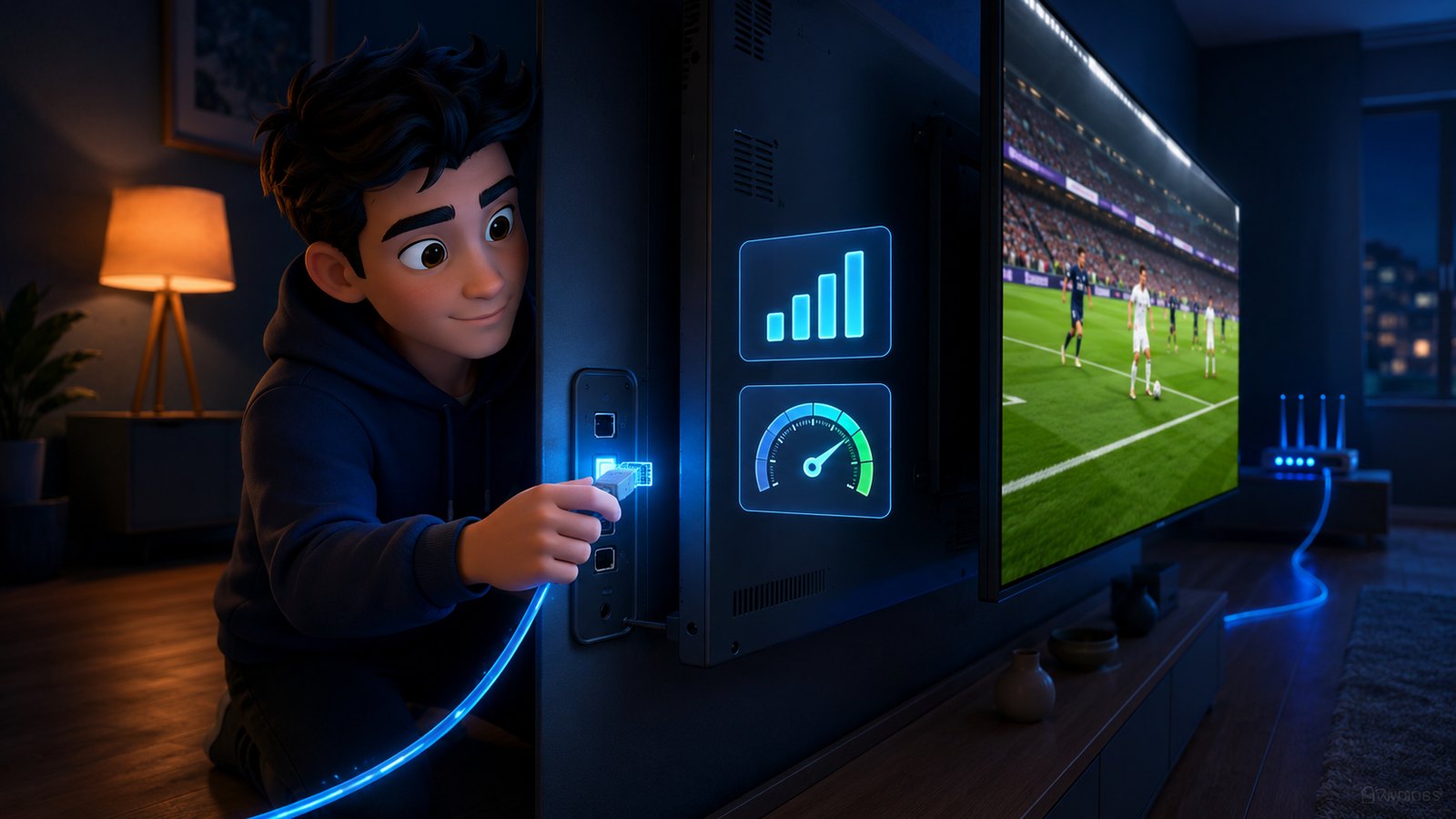
When the Right Answer Is a £35 Stick
There is no prize for making the built-in system work. A Smart TV’s app platform is the part of the television that ages fastest — the panel will look excellent in eight years, the software will have been abandoned in four. An external streaming device sidesteps the entire problem for less than the price of one month’s subscription on some services.
Reach for a stick when any of these are true:
- Your TV is older than roughly 2016, or the store has nothing usable in it.
- The built-in interface takes several seconds to respond to the remote. Old smart TV chipsets are slow, and a heavy channel list makes it worse.
- You want TiviMate, recording, or multiple playlists — none of which the Tizen and webOS players handle well.
- You would rather not pay a per-television app licence.
- You want the same interface on every screen in the house.
Any Fire TV Stick 4K, Android TV box or Google TV dongle does the job. Our Firestick guide covers that route end to end, including the four settings that decide your picture quality.
Getting the Picture Right on a Big Panel
Weak spots show up far more on a 55-inch television than on a phone, so a few things matter more here than anywhere else.
Wire it if you can
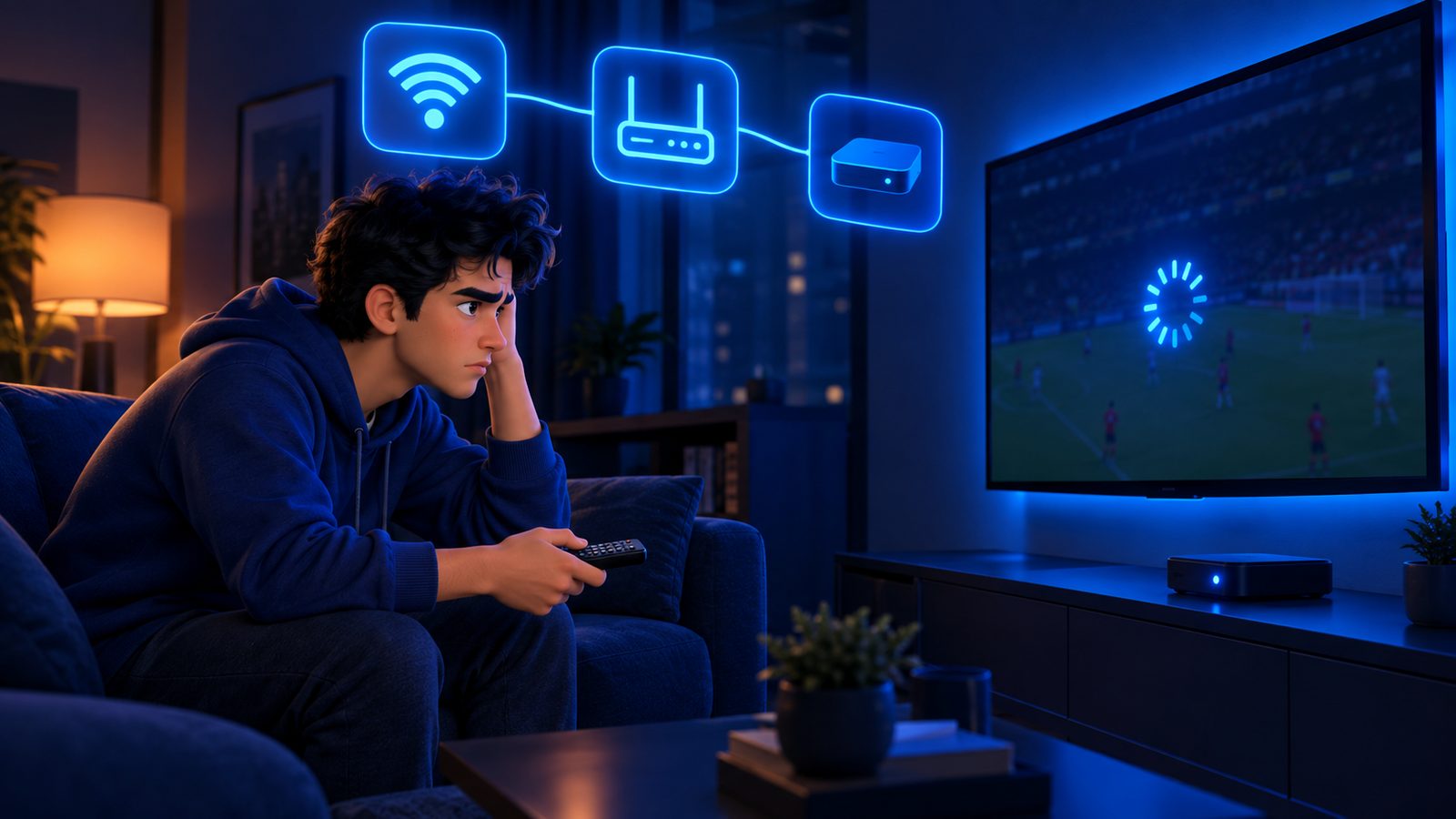
Televisions have poor aerials, sit low in a corner, and are often the furthest device from the router. Nearly every Smart TV has an Ethernet port on the back — use it. If a cable genuinely is not possible, force the 5 GHz band and consider a mesh node in the same room. This single change fixes more Smart TV buffering than every app setting combined.
Do not expect 4K everywhere
A 4K panel does not make a 1080p channel into a 4K one. Most live channels, including most sport, broadcast in 1080p or 720p, and a large panel will show every compression artefact honestly. That is broadcasting, not your provider — check what a channel is actually sending before blaming the line.
Turn off the TV’s own processing
Motion smoothing, noise reduction and dynamic contrast are tuned for broadcast television, and they can turn a live stream into a soft, smeared mess. Switch the picture mode to Filmmaker, Cinema or Game and judge the stream again from there.
Restart the television properly
Smart TVs almost never fully power down; the standby light hides a machine that has been running for months. Unplug it at the wall for thirty seconds. It clears more stuck app problems than any menu option, and it costs nothing to try before you contact anyone.
If the picture still breaks up after all of that, the problem is past the television and our nine-step buffering guide works through the line, the ISP and peak-time load in order.
Red Flags Specific to Smart TV Buyers
Because Smart TV owners often just want it to work, a certain kind of seller targets them directly. The patterns are consistent:
- “Install our own app on your Samsung.” You cannot sideload on Tizen or webOS, so this is either untrue or it is a re-skin of an existing player. Either way it locks you to one seller. Insist on Xtream Codes or M3U, which work in every mainstream app.
- “We will do it on TeamViewer for you.” Never hand remote control of a device to a stranger who sold you a subscription. The steps above are the whole job.
- An app licence sold as part of the subscription. The Smart IPTV licence belongs to the app developer and costs a few euros once. A provider charging you extra for it is charging you for something they do not own.
- “Lifetime subscription, works on all Smart TVs.” Streaming has a recurring server cost. Nobody funds a lifetime of it from a single payment and still exists next season.
- A free trial instead of a refund policy. A trial runs on a quiet test server and proves very little about a Saturday evening. A published refund window puts you on the same line as everyone else, with your money still in reach.
The Verdict
IPTV on a Smart TV is easy the moment you stop thinking in brands and start thinking in operating systems. Android TV and Google TV are effortless — install a player from the Play Store and log in. Samsung and LG are perfectly usable, but you are working inside a curated store, you will probably pay a small one-off app licence, and you will load your playlist through a website using your TV’s MAC address. Anything older than 2016, or any set whose store has nothing worth installing, is best treated as an excellent monitor with a cheap stick in the back.
What no television can fix is a line that collapses when a match kicks off. ottocean runs one line for every customer, gives you a standard Xtream Codes login and an M3U link that work in every app named on this page, publishes its plans and prices and its channel list, and backs the lot with a 7-day money-back guarantee — so you can set the TV up properly, watch a full weekend on it, and decide afterwards.
Smart TV Guides Elsewhere
Samsung, LG and Android TV each behave differently, and a second source often names the app your model actually supports.
- IPPlayTV — covers the app-store route on the main Smart TV platforms.
- KiloTV — helpful when your TV will only take an M3U URL and nothing else.
- Tivo8K — relevant if your set is a 4K or 8K panel and you want to feed it properly.
Frequently Asked Questions
How do I install IPTV on a Samsung Smart TV?
Install Smart IPTV or IPTV Smarters Pro from the Samsung Apps store. With IPTV Smarters you type your Xtream Codes URL, username and password directly on the TV. With Smart IPTV you note the MAC address the app shows, then upload your M3U link against that MAC address on the app’s own website and restart the app.
How do I install IPTV on an LG Smart TV?
Open the LG Content Store and install Smart IPTV, Set IPTV or IPTV Smarters. The process matches Samsung, with one catch: webOS has separate MAC addresses for Wi-Fi and Ethernet. Connect the TV the way you intend to use it first, then register the MAC address the app displays.
Which IPTV app is best for Smart TVs?
On Android TV or Google TV, TiviMate for the best channel list and recording, IPTV Smarters Pro if you want the simplest setup. On Samsung and LG, IPTV Smarters where available because it accepts a login on the TV itself, otherwise Smart IPTV. Install one player, not three.
Why is there no IPTV app in my TV's store?
Either your set is too old for the current app versions, or the platform has removed those apps from its store, which Samsung has done before. There is no sideloading on Tizen or webOS, so the practical fix is a streaming stick in a spare HDMI port rather than a new television.
Do I have to pay for the Smart IPTV app?
Yes, after the seven-day trial there is a small one-off licence tied to your TV’s MAC address, paid to the app developer, not to your IPTV provider. It is a few euros per television. Any provider charging you separately for it is charging for something they do not own.
Why does IPTV buffer on my Smart TV but not on my phone?
Usually the network and the chipset. The TV sits low in a corner with a weak aerial while your phone is out in the open, and built-in smart TV processors are far slower than a modern streaming stick. Connect the TV by Ethernet, restart it at the wall, and if it is still slow, move to an external device.
Can I watch IPTV on a Smart TV without any app?
Not directly, no. You need a player that can read an M3U or Xtream Codes line. The alternatives are casting from a phone, which is unreliable for long live streams, or plugging in a streaming stick, which is the better answer.
Will ottocean work on my Smart TV?
Yes. We provide a standard Xtream Codes login and an M3U link, which is exactly what Smart IPTV, IPTV Smarters, Set IPTV, Flix IPTV, TiviMate and every other mainstream player expect. There is no proprietary app, no device lock-in, and the same credentials work on your phone and any stick at the same time, up to your plan’s connection limit.
One login. Every app your television will accept.
Xtream Codes and M3U for Samsung, LG, Android TV and any stick, one line for every customer, published prices, and a 7-day money-back guarantee so the risk stays with us.